
Download BookletCreator – Free PDF Booklet Maker for macOS
Overview
BookletCreator is a lightweight, free multimedia application built exclusively for macOS users who need to turn ordinary PDF files into perfectly formatted printable booklets. Whether you are an educator preparing handouts, an event organizer assembling program guides, or a hobbyist looking to compile a small catalog, BookletCreator removes the technical hurdles that typically accompany booklet production. The interface is intentionally simple: drag‑and‑drop your source PDF, pick the desired page count and paper size (A3, A4, or A5), and let the engine do the heavy lifting.
Within seconds, a new PDF is generated, ready for double‑sided printing, folding, and stapling. Because the tool runs locally on your Mac, there are no hidden cloud uploads, ensuring that confidential documents stay secure. The app also supports high‑resolution output, so the final booklet retains crisp text and graphics, matching professional printing standards.
BookletCreator’s primary value lies in its focus on a single task—booklet creation—delivered in a user‑friendly package that requires no prior design experience. This makes it a practical addition to any Mac toolbox, especially for those who frequently repurpose existing PDFs into compact, easy‑to‑distribute booklets.
Key Features & Capabilities
- One‑click PDF upload – simply drag your file into the main window.
- Automatic pagination – choose the number of pages per booklet sheet.
- Multiple paper size support – A3, A4, and A5 layouts are pre‑configured.
- Instant preview – see a live mock‑up before finalizing the output.
- High‑resolution export – retains original image quality for professional printing.
- Secure local processing – no internet connection required, keeping your data private.
- Free for personal and commercial use – no hidden subscription fees.
- Lightweight installer – under 15 MB, minimal impact on system resources.
- Batch processing – handle multiple PDFs in a single session (future roadmap).
- Mac‑only optimization – leverages native macOS graphics libraries for speed.
Why These Features Matter
Each feature of BookletCreator has been chosen to streamline the booklet‑creation workflow. The drag‑and‑drop upload eliminates the need for navigating complex file dialogs, while automatic pagination saves you from manually calculating how many sheets are required for a given page count. Paper‑size presets align with the most common printing standards, meaning you won’t waste time adjusting margins or scaling content.
The instant preview acts as a safety net, catching layout errors before they reach the printer, which can save both paper and ink. High‑resolution export ensures that graphics, charts, and photographs maintain their fidelity, a crucial factor for academic handouts or marketing brochures. Because the processing happens locally, you retain full control over sensitive information—an essential consideration for schools and businesses handling confidential material.
Finally, the free licensing model encourages widespread adoption without the barrier of recurring costs, making it an attractive tool for budget‑conscious users.
Installation, Setup & Daily Use
Getting started with BookletCreator is straightforward. Follow these steps to install and begin creating booklets:
- Visit the official BookletCreator website and click the “Download for macOS” button.
- Once the
.dmgfile is downloaded, open it and drag the BookletCreator icon into your Applications folder. - Launch the app from the Applications directory or via Spotlight search.
- On first launch, macOS may prompt you to confirm that you trust the developer; click “Open” to proceed.
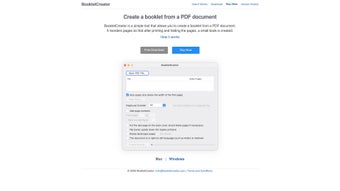
- In the main window, drag your source PDF onto the designated drop zone or use the “Browse” button to locate the file.
- Select the desired page size (A3, A4, or A5) from the dropdown menu.
- Enter the number of pages you wish to include per booklet sheet; the app will automatically calculate the required sheets.
- Click “Generate Booklet” to start the conversion. A progress bar indicates the status, and within seconds the new booklet PDF appears in the output folder.
- Open the generated PDF in Preview to verify layout, then send it to your printer with double‑sided settings enabled.
The user interface is intentionally minimalistic, with clear icons and tooltip assistance for each control. For users who need to produce multiple booklets in a row, the “Recent Files” panel stores the last ten PDFs, allowing you to quickly reprocess documents with different page‑size settings. While the current version focuses on single‑file processing, upcoming updates promise batch handling and custom margin adjustments. Overall, the installation footprint is tiny, and the learning curve is essentially nonexistent—most users report being able to create their first booklet within five minutes of downloading the app.
Compatibility, Pros & Cons
BookletCreator is designed exclusively for macOS 10.13 (High Sierra) and later. It takes advantage of Apple’s native Core Graphics framework, delivering fast rendering even on older MacBook models. Because the software does not rely on external libraries or Java, there are no additional runtime dependencies to install, which further reduces the risk of compatibility conflicts.
Pros
- Free and fully functional – no hidden fees or trial limitations.
- Fast processing – converts PDFs to booklet format in seconds.
- Secure local operation – no cloud upload, keeping data private.
- Intuitive UI – suitable for users with minimal technical background.
- High‑quality output – preserves original PDF resolution.
Cons
- Available only on macOS; Windows and Linux users must look for alternatives.
- No built‑in batch processing in the current release.
- Limited customization of margins and bleed areas.
- Advanced features such as cover page design are not included.
- Relies on the user’s printer settings for double‑sided printing accuracy.
FAQ – Frequently Asked Questions
Can BookletCreator handle PDFs larger than 100 MB?
Yes. The application processes files based on available RAM, so even large PDFs can be converted, though processing time may increase proportionally.
Is there a way to add a custom cover page?
The current version does not include a built‑in cover designer. Users can prepend a separate cover PDF before running BookletCreator, then combine the two files using Preview.
What printer settings are recommended for best results?
Select “Print on both sides (duplex)” and choose the same paper size you set in BookletCreator. Disable any scaling options to keep the layout exact.
Can I use BookletCreator for commercial projects?
Absolutely. The free license covers both personal and commercial use without any attribution requirement.
Is there an automatic update mechanism?
BookletCreator checks for updates once a week and notifies you via a pop‑up dialog. You can then download and install the latest version with a single click.
Conclusion & Call to Action
BookletCreator fills a niche that many macOS users have long needed: a no‑frills, free tool that transforms ordinary PDFs into printable booklets with a few clicks. Its focus on security, speed, and simplicity makes it especially attractive for educators, event planners, and small businesses that must produce professional‑looking handouts without investing in expensive layout software. While the lack of Windows support and limited batch capabilities may deter power users, the core functionality delivers consistent, high‑quality results that rival many paid alternatives. If you regularly print brochures, programs, or study guides, giving BookletCreator a try will likely streamline your workflow and reduce printing errors. Download the installer today, create your first booklet in under a minute, and experience how effortless PDF booklet creation can be on your Mac.
Overall Rating: 4.5 / 5
Pros: Free, fast, secure, high‑quality output.
Cons: macOS‑only, no batch processing yet.







